Let me tell you something that took me way too long to figure out. Sales Navigator filters aren’t just dropdowns you click through hoping something sticks. They’re the entire foundation of whether your LinkedIn automation campaigns actually work or completely flop. I’ve seen teams spend thousands on Sales Navigator licenses and then use maybe 3 filters. That’s like buying a Ferrari and only driving it in first gear.
Most people treat Sales Navigator like a glorified LinkedIn search. Type in a job title, pick an industry, hit search, done. But the real power, the stuff that separates teams booking 50 calls a month from teams booking 5, lives in understanding how to layer these filters together. And in 2026, with LinkedIn’s expanded Buyer Intent features and the new “Who Viewed My Company Page” filter, this game has evolved significantly.
What Even Are Sales Navigator Filters and Why Should You Care
Sales Navigator filters are your targeting controls. Simple as that. They determine who shows up in your search results and who doesn’t. But calling them “filters” undersells what they actually do. Think of them more like a sorting machine for the 900+ million LinkedIn users out there. Your job is to configure that machine so it spits out only the people who might actually buy what you’re selling.
The platform breaks down into a few main filter categories. You’ve got Lead Filters for targeting individual people. Account Filters for targeting companies. Spotlight and Buyer Intent Filters that highlight specific behaviors and intent signals. And Workflow Filters that help you manage your existing leads and accounts. Most people only use the first category. Big mistake.
Why does this matter for B2B lead generation? Because generic outreach is dead. I’m not being dramatic here. The response rates on mass connection requests have dropped to around 15-20% in 2026. But when you combine the right filters with genuine relevance? We’ve seen teams hit 45-50% acceptance rates. The difference is entirely in targeting.
Lead Filters: The Foundation of Every Good Search
Let’s start with what most people already use, at least partially. Lead filters target individual professionals based on their profile information.
Job Title and Function are the obvious starting points. But here’s where people mess up. They search for “Marketing Manager” and get flooded with results that include Marketing Managers at 10-person agencies and Marketing Managers at Fortune 500 companies. Completely different buyers with completely different needs and budgets.
The trick is combining title filters with Seniority Level. Want decision makers? Filter for VP, Director, CXO, or Owner seniority. Want influencers who can champion your product internally? Go for Manager or Senior level. This single combination probably eliminates 60% of irrelevant results immediately.
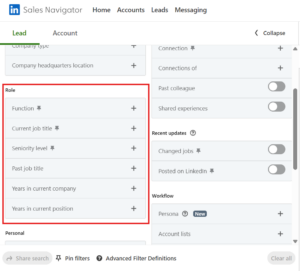
Geography filters remain essential in 2026. You can target by region, country, or city-level. For teams doing regional campaigns or targeting specific tech hubs, combining geography with industry and size creates focused lists. Instead of just “United States” you can narrow down to specific cities and catch all those SaaS companies that relocated there.
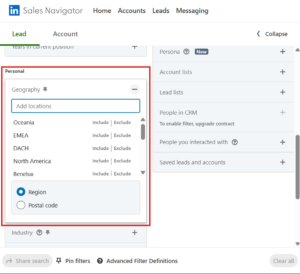
Company Size is another one people underuse. If you sell to mid-market, why are enterprise companies showing up in your results? Set your headcount range. 51-200 employees, 201-500 employees, whatever fits your ICP. Same goes for Company Type if you only sell to public companies or only to privately held businesses.
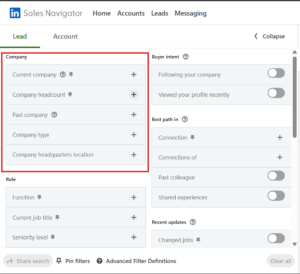
Here’s a filter most people completely ignore: Years in Current Position. Someone who’s been in their role for 6+ years is a very different prospect than someone who just started 3 months ago. New people are often looking to make changes, prove themselves, bring in new tools. Veterans might be more set in their ways but also have budget authority. The 0-1 year segment is particularly valuable for finding leaders actively evaluating new solutions.
Profile Keywords deserve attention too. Scanning profiles for concepts like “RevOps”, “Demand Gen”, or “PLG” helps you reach people thinking in the language of your pain point. This goes beyond job titles to find people whose actual work aligns with what you sell.
Account Filters: Targeting Companies Before People
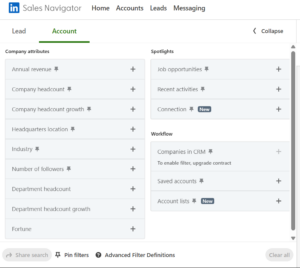
This is where Sales Navigator starts separating itself from regular LinkedIn search. Account filters let you build lists of companies first, then find the right people within them.
Industry filters are table stakes. But the real magic happens when you combine them with Company Headcount Growth. This filter shows you companies that are actively growing, which usually means they have budget and are scaling. A SaaS company that grew headcount 10-20%+ over the last year is a much better prospect than one that’s been flat for three years.
Revenue and Company Headcount filters help you size-qualify accounts before you even look at individual leads. If your product needs a minimum $10M in annual revenue to make sense, stop wasting time on smaller companies.
The Technologies Used filter is sneaky powerful for anyone selling to technical teams. You can filter for companies using specific tools. Competitors, complementary products, legacy systems you integrate with. If you sell a Salesforce add-on, finding companies that use Salesforce is kind of important.
Department Headcount is incredibly useful. Want companies with large sales teams? Filter for organizations with 50+ people in sales functions. Targeting HR buyers? Find companies with dedicated HR departments of a certain size. Department Headcount Growth adds another layer, showing you which functions are expanding within target companies. This tells you a lot about whether they have the sophistication and need for what you’re selling.
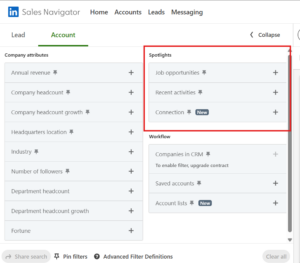
Job Opportunities is a spotlight filter for accounts that surfaces companies actively hiring in specific functions. This works as a proxy for growth and budget, companies hiring aggressively usually have money to spend on tools that help those new hires perform.
Spotlight and Buyer Intent Filters: Where Intent Data Gets Real
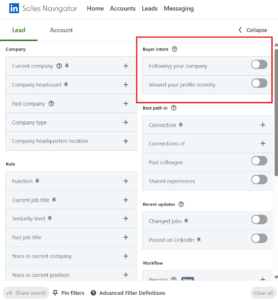
Spotlight and Buyer Intent filters are probably the most underutilized features in Sales Navigator. They highlight prospects showing specific behaviors and signals that indicate potential buying interest.
Posted on LinkedIn (under Recent Updates) shows you leads who’ve been active on the platform recently. Why does this matter? Because reaching out to someone who hasn’t logged in for 6 months is pointless. They’re not going to see your message. But someone posting regularly? They’re engaged, active, and more likely to respond. Many practitioners now advocate for always enabling “Posted on LinkedIn recently” for outbound campaigns.
Changed Jobs in Past 90 Days is one of my favorite filters. New executives are significantly more likely to buy new solutions than someone who’s been in their seat for years. They’re trying to make an impact, bring fresh ideas, and aren’t tied to existing vendor relationships. This filter alone can transform your response rates. Most experienced teams run a dedicated “priority” outreach sequence to this segment first.
Viewed Your Profile Recently (under Buyer Intent) is a warm segment. Someone checking out your profile already has some interest. Many practitioners reach out to these leads within 48 hours while the interest is fresh.
The newest addition making waves in 2026 is Who Viewed My Company Page (last 90 days). This filter, available on Advanced and Advanced Plus plans, shows you people who visited your LinkedIn company page. It only displays visitors who opted in to being publicly visible, but it ties company-level interest to actual person-level outreach. You’re no longer guessing who’s researching your brand. This works best when combined with Seniority, Function, Geography, and Company headcount filters to narrow results to visitors who also match your ICP.
Shared Experiences finds leads who have something in common with you. Same school, same past company, same group memberships. These shared connections give you an instant conversation starter that doesn’t feel like a cold pitch.
Boolean Search: The Power User’s Secret Weapon
If you’re not using Boolean search in Sales Navigator, you’re leaving so much precision on the table. Boolean operators let you create complex, layered searches that the standard filters simply can’t match.
The basics: AND requires both terms. OR accepts either term. NOT excludes terms. Parentheses group terms together. Quotation marks search for exact phrases.
Here’s a real example that actually works. Let’s say you’re targeting VP-level sales leaders but want to capture all the title variations:
“VP Sales” OR “VP Revenue” OR “Head of Sales” OR “Sales Director”
You can also exclude competitors:
NOT “Competitor Name”
That simple approach handles what would take multiple separate searches to accomplish otherwise.
A few Boolean tips I’ve learned the hard way. Keep your strings readable. Use parentheses even when you think you don’t need them. Test small before going big. And save your working Boolean searches somewhere because you WILL forget them.
Layering Filters: How to Actually Build a High-Intent List
Individual filters are useful. Layered filters are where the real results come from. Let me walk you through a workflow that top practitioners use in 2026.
Start with Account Filters. Define the type of company you want to target. Industry, headcount, headcount growth, technology stack, job opportunities. Run Account Search, apply your filters, then scan the first 20-30 results to verify relevance. If the list looks wrong, adjust before proceeding. Save your results as a named Account List with a descriptive name like “US SaaS 51-200 employees, 10%+ growth, SFDC users, 2026-07”.
Then switch to Lead Search and layer Lead Filters on your Account List. Go to Workflow, select Account Lists, choose your saved list. Now add lead filters: Job titles (use Boolean for variations), Seniority (Director+, VP+, C-level), Function (Sales, RevOps, Marketing), Geography matching your sales coverage.
Add Spotlights and Buyer Intent to create warm segments. This is where you separate the mildly relevant from the actually-in-market:
- Posted on LinkedIn recently (30 days)
- Changed jobs in last 90 days
- Viewed your profile recently
- Who viewed your company page (last 90 days)
Split into separate lists and prioritize. Create two segments:
- Warm leads: Match ICP + at least one recent update or buyer intent signal
- Standard leads: Match ICP without recent triggers
Outreach gets prioritized to warm leads first for higher reply rates.
Finally, use Workflow Filters to exclude people you’ve already engaged. You don’t want to reach out to the same person twice from different campaigns.
Here’s a concrete example. I want to sell a sales enablement tool to growing B2B SaaS companies:
Account filters: Computer Software industry, 51-500 employees, 10%+ headcount growth in past year, uses Salesforce
Lead filters: VP Sales OR Director Sales Enablement OR Head of Revenue Operations, Seniority Director or above
Spotlight filters: Changed jobs in past 90 days OR Posted on LinkedIn in past 30 days
Workflow filters: NOT in any existing Lead List
That search might return 500 leads instead of 50,000. But those 500 leads? They’re gold. They fit your ICP, they’re at companies that can afford your product, they’re active on the platform, and they’re likely in a buying mindset.
Common Filter Mistakes That Kill Your Campaigns
Let me share some mistakes I’ve made so you don’t have to repeat them.
Going too broad is the most common error. You’re excited, you have Sales Navigator, you want to reach everyone. So you set minimal filters and end up with 100,000+ results. That’s not a list, that’s just LinkedIn with extra steps. If your search returns more than 2,500 leads, it’s probably too broad.
Going too narrow is the opposite problem. You add every filter you can think of, your Boolean string is 500 characters long, and you end up with 12 results. A total of 12 people on the planet fit your criteria. That might be too specific. Pull back a bit. If you get fewer than 20 results, remove some constraints, loosen title exactness, or expand regions.
Ignoring negative filters costs people so much time. If you know certain companies aren’t a fit, exclude them. If certain job titles always end up being wrong, NOT them out of your Boolean. Every irrelevant lead you contact is time wasted and potential credibility lost.
Not saving your searches is just painful. You spend 20 minutes building the perfect filter combination, you run your campaign, and then you can’t remember what you did. Sales Navigator lets you save searches. Use that feature. Name them with segment + region + date, like “US SMB SaaS VP Marketing Warm 2026-07”. Keep written documentation of your filter stacks. Future you will be grateful.
Forgetting about existing lists creates embarrassing situations. You reach out to someone who’s already a customer. Or you contact the same prospect from two different campaigns in the same week. Use workflow filters to exclude people you’ve already engaged.
Skipping manual verification before saving searches wastes effort downstream. Scan the first 20-30 profiles in any search to verify relevance. If the results look off, fix the filters before building campaigns on top of them.
Automation and Sales Navigator: Making It Actually Scale
Sales Navigator is powerful for research and list building. But manually reaching out to hundreds of leads? That doesn’t scale. This is where LinkedIn automation tools come into play.
The workflow typically looks like this. Build your filtered list in Sales Navigator. Use a URL-based integration where you paste your Sales Navigator search URL, the tool ingests the filtered list, and campaigns run based on that live filter stack. This makes filter design and saved searches your primary “source of truth” for targeting.
The key is keeping your targeting tight. Automation amplifies whatever you put into it. Amazing targeting plus automation equals amazing results. Garbage targeting plus automation equals garbage results at scale, which is actually worse than doing nothing.
For teams serious about scaling, tools like Sbl.so that can pull directly from Sales Navigator URLs make life much easier. You paste your filtered search URL, the tool extracts the leads, and you’re running campaigns in minutes instead of hours. If you’re doing this manually with CSVs and spreadsheets, you’re working way harder than you need to.
CRM integrations have also improved. You can sync your saved searches and lead lists to HubSpot, Salesforce, and other platforms. Filter changes in Sales Navigator can flow through to your CRM segments, keeping your targeting aligned across systems.
Advanced Strategies: Combining Filters for Specific Use Cases
Let me give you some specific filter combinations for common scenarios.
For ABM campaigns targeting specific accounts: Start by uploading or building your target account list via Account filters. Save as an Account List, then go to Lead Search, select Workflow, choose Account Lists, and pick your target list. Layer lead filters for titles and seniority. Add the “Posted on LinkedIn” spotlight to prioritize active users. This gives you the right people at your target accounts who will actually see your messages.
For outbound to fast-growing startups: Filter for company headcount growth (10-20%+), recent hiring activity, and smaller company sizes (11-200 employees). Then target founder and C-level titles. These are the companies with money and urgency.
For reaching job changers at enterprise companies: Filter for company size 1000+, add the “Changed Jobs in Past 90 Days” spotlight, and target Director+ seniority. New leaders at big companies often have mandate and budget to make changes. Run a dedicated priority sequence to this list.
For competitive displacement: Use the Technologies Used filter to find companies using competitor products. Add revenue or size filters to ensure they can afford your solution. Target the job titles responsible for that technology decision. This surfaces exactly who’s using what you want to replace.
For warm outreach based on company page visits: Enable “Who Viewed My Company Page (last 90 days)” under Buyer Intent. Combine with Seniority, Function, Geography, and Company headcount to narrow to visitors matching your ICP. These people already showed interest in your brand, so your outreach has context.
What’s Changed in 2026 That You Need to Know
LinkedIn has continued evolving Sales Navigator. Several updates from late 2025 and 2026 are worth understanding.
The Who Viewed My Company Page (last 90 days) filter is probably the biggest addition. Located under Buyer Intent in Lead Search, it shows people who visited your LinkedIn company page. It only works for users who opted in to being visible, but it finally connects company-level interest signals to actual person-level targeting. This is available on Advanced and Advanced Plus plans.
The Buyer Intent category has expanded beyond just “Viewed your profile recently.” You now commonly see:
- Viewed your company page recently (last 90 days)
- Engaged with your content (in some UI versions)
These are native LinkedIn behavioral signals, not third-party intent data imports.
Spotlights and Recent Updates have become more central to targeting workflows. Current best practices emphasize these filters as core intent layers:
- Posted on LinkedIn recently / in past 30 days
- Changed jobs in the last 90 days
- Viewed your profile recently
The Search UX has improved. From the Sales Navigator homepage, Lead filters and Account filters are clearly separated in the left panel. Saved search handling is smoother with toggle controls at the top of results, and you can share Account Search configurations with teammates on Advanced/Advanced Plus plans.
The emphasis on filter education before automation has grown across the practitioner community. Mastering filters, segmentation, and intent signals before plugging into automation tools is now standard advice. Your saved searches and filter stacks are treated as the foundation everything else builds on.
The Real Goal: Better Conversations, Not Just More Leads
I want to end with something that’s easy to forget when you’re deep in filter configurations. The point isn’t to generate the most leads possible. The point is to generate leads who actually want to talk to you.
Every filter you apply should have a strategic reason. Every Boolean operator should serve your ICP definition. Every spotlight filter should increase the likelihood of a positive response.
When your targeting is right, your messaging gets easier. You can write relevant, specific outreach because you know exactly who you’re talking to. “Hey, noticed your company grew 40% this year and you just took over the sales org, that’s a lot to inherit” hits differently than “Hi, I see you’re a VP at a company.”
If you’re scaling outreach using AI sales automation, good filtering is even more critical. The AI can personalize messages and handle conversations, but it needs to be talking to the right people in the first place. Garbage in, garbage out applies to AI agents just as much as it applies to human SDRs.
Sales Navigator filters aren’t set-and-forget. Markets change, your ICP evolves, LinkedIn adds new capabilities. Build a habit of revisiting your saved searches quarterly. Are they still returning the right people? Have new filters become available that would improve precision? Are there exclusions you should add based on campaign learnings?
The teams that win at B2B sales strategy in 2026 aren’t the ones sending the most messages. They’re the ones sending the right messages to the right people. And that all starts with understanding how to actually use these Sales Navigator filters.
Now go build some lists. And maybe start with fewer filters than you think you need, then add more as you see what works. That’s usually better than trying to configure 15 filters on day one and getting paralyzed by options.
Frequently Asked Questions
Which Sales Navigator filters matter most for B2B lead generation?
Job Title + Seniority + Function form the core decision-maker stack. Company Headcount + Industry align with your ICP. Years in Current Role, Posted on LinkedIn recently, and Changed jobs in last 90 days are key intent and timing signals that separate warm prospects from cold lists.
How do I target job changers effectively?
Use “Changed jobs in last 90 days” plus Seniority (Director+) combined with your ICP filters. Save this as a separate “job changers” warm list. Most experienced practitioners give this segment their best outreach sequence first because these leads are actively evaluating new tools.
Can I see who viewed my company page and message them?
Yes, for users who opted in. Turn on “Who Viewed My Company Page (last 90 days)” under Buyer Intent in Lead Search, then layer your usual filters. This is distinct from “who viewed my profile” and operates at the company-page level. It’s available on Advanced and Advanced Plus plans.
How should I structure saved searches and lists?
Name searches by segment + region + date, like “US SMB SaaS VP Marketing Warm 2026-07”. Maintain two lead lists per campaign (warm vs standard) and revisit Account Lists monthly to adjust for company changes. Keep written documentation of your filter stacks.