You woke up this morning. Grabbed your coffee. Opened LinkedIn. And there it was. That dreaded banner. “Your account has been restricted.” Your stomach drops. Your pipeline freezes. Your outreach stops cold. Sound familiar? You’re not alone. In 2026, LinkedIn has become ruthless about enforcement. They’re catching more accounts than ever. And the worst part? Most people have no idea what they did wrong.
Let me walk you through exactly how to unrestrict your LinkedIn account. We’ll cover why it happened. How to fix it. And how to never see that banner again.
Why LinkedIn Restricted Your Account
First things first. You need to understand what triggered the restriction. LinkedIn doesn’t restrict accounts randomly. There’s always a reason. Usually one of these:
Excessive connection activity. Sending too many invites. Getting too many “I don’t know this person” reports. Inviting weak connections repeatedly. LinkedIn tracks all of this. Their risk scoring systems combine these signals to build a profile of your account behavior.
Automation tool detection. This is the big one. LinkedIn has gotten scary good at spotting bots. Browser extensions. Auto-visitors. Auto-connectors. Auto-messengers. They see it all. Even tools that claim to be “safe” get caught. LinkedIn explicitly classifies nearly all third-party automation as a User Agreement violation.
Data scraping. Bulk profile exports. Email extraction. Lead list building through unauthorized methods. LinkedIn’s legal team has gone after scrapers hard. They’ve filed lawsuits and issued public statements targeting these practices.
Spammy messaging. Mass templated outreach. Zero personalization. Immediate sales pitches after connecting. LinkedIn flags this fast. Messages that prompt spam reports tank your trust score quickly.
Fake or duplicate accounts. Pseudonyms. Stock photos. Multiple profiles. Impersonation. LinkedIn wants real people. They’ve expanded identity verification requirements significantly.
Security flags. Logging in from new countries. Multiple IPs. Device switching. Shared credentials. All red flags. LinkedIn’s systems now combine IP patterns, device fingerprints, and behavioral signals to detect unusual access.
Here’s the truth. Most restrictions come from automation. You used a tool. The tool got detected. Now you’re locked out. That’s not a glitch. That’s enforcement working exactly as designed.
The Two Types of LinkedIn Restrictions
Not all restrictions are equal. Understanding which type you have determines your next steps.
Soft limitations. These are temporary blocks on specific actions. You can still log in. You can still browse. But certain features are locked. Connection requests blocked. Messaging limited. Profile viewing restricted. Error messages often reference “unusual activity” or “you have reached the limit” for that feature. These usually lift in 24-72 hours if you stop the triggering behavior.
Hard restrictions. This is the full lockdown. Login blocked. All features disabled. ID verification required. Appeal mandatory. LinkedIn may ask for government ID uploads, selfie verification, or work email confirmation. These can take weeks to resolve. Sometimes they’re permanent.
Check your inbox. LinkedIn sends emails explaining the restriction type. Look for phrases like “unusual activity” or “policy violation.” Screenshot everything. You’ll need this for your appeal.
Step-by-Step: How to Unrestrict Your LinkedIn Account
Here’s the exact process. Follow it precisely. Skipping steps will hurt your chances.
Step 1: Stop All Third-Party Activity Immediately
Before you do anything else. Disconnect every tool. Every extension. Every automation. Right now.
That means:
- Browser extensions (Dux-Soup, Linked Helper, etc.)
- Cloud automation platforms
- CRM auto-actions
- Data enrichment tools that interact with LinkedIn
- Any SaaS running campaigns on your account
Do this before filing your appeal. If LinkedIn detects continued automation during review, your appeal dies instantly. They’re watching. Restrictions are often triggered by patterns over time, and continuing similar behavior while under review strengthens the case for a permanent ban.
Step 2: Complete All On-Screen Verification
LinkedIn will show you exactly what they need. Don’t skip anything.
For security restrictions:
- Reset your password
- Confirm recent logins
- Verify via SMS or email
- Answer security questions
- Complete multi-factor authentication setup if prompted
For identity restrictions:
- Upload a government ID (passport, driver’s license, national ID card)
- Provide proof of employment if requested
- Capture a selfie if prompted (LinkedIn matches this with your ID and profile photo)
Use clear, high-quality images where names, dates, and photos are legible. Make sure names match exactly. Any mismatch creates suspicion and delays the process.
Step 3: Submit Your Formal Appeal
Now comes the important part. Your appeal needs to hit specific notes.
Find the appeal link. It’s usually in the restriction banner or in the email LinkedIn sent. Click “Contact Us” or “Appeal this decision.” Avoid third-party “appeal services.” LinkedIn doesn’t recognize them as intermediaries.
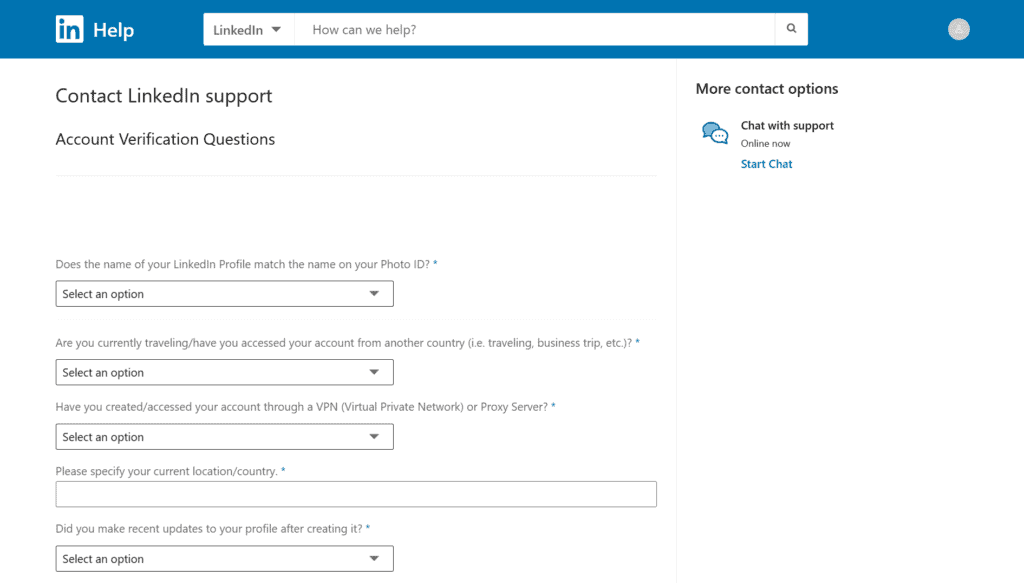
Here’s how to write an appeal that actually works:
Be concise. Three to four short paragraphs max. Nobody reads essays. Enforcement teams focus on facts and policy alignment.
Be factual. State what happened. No emotional language. No excuses. No threats.
Acknowledge the issue. If you used an automation tool, admit it. “I experimented with a browser extension for outreach. I’ve now removed it completely.”
Show understanding. Reference LinkedIn’s policies directly. “I understand this violates the User Agreement regarding automated activity.”
Commit to compliance. “Going forward, I will only use LinkedIn’s native features and permitted products like Sales Navigator for outreach and connection building.”
That’s it. Simple. Honest. Professional. Don’t beg. Don’t threaten. Don’t claim you did nothing wrong when you clearly did something.
Step 4: Wait and Respond Quickly
Initial automated responses arrive within hours. Actual human review takes longer. Expect:
- 1-3 days for minor, first-time issues with straightforward verification
- Up to 2 weeks for serious violations or complex security investigations
- Longer for repeated offenders or large-scale policy issues
If LinkedIn asks for more information, respond immediately. Every hour you delay reduces your chances. Timely responses help keep your case active and improve restoration odds. Have your documents ready.
Step 5: If Your Appeal Gets Denied
Let’s be honest. Sometimes the answer is no.
Permanent bans happen when:
- You have clear evidence of large-scale automation over long periods
- You ignored previous warnings or temporary limits
- You engaged in fraud, scraping, or serious policy abuse
You can try a second appeal. Be more detailed. Provide more context or new evidence. But success rates after formal denial are low. Very low. Once LinkedIn explicitly tells you the decision is final, the probability of reversal becomes slim.
Some users with premium accounts or significant ad spend have gotten help through account representatives. If you’re on Sales Navigator Enterprise, Recruiter Corporate, or have substantial LinkedIn advertising, try that route. This isn’t a guarantee of reinstatement, but these channels can sometimes lead to faster or more detailed responses.
But if your account ran heavy automation for months? Built lead lists through scraping? The account is probably gone. Time to rebuild properly under strict compliance.
Most Commonly Asked Questions on LinkedIn Account Restrictions
How long does a LinkedIn restriction last?
It depends on the type. Soft limits lift in 24 hours to a few days once risky behavior stops. Verification holds last until you complete the required steps. Policy violations range from days to permanent. Your history matters. First offense? Probably temporary. Third offense? Likely permanent. LinkedIn doesn’t publish fixed universal timeframes since their internal assessment and your cooperation determine duration.
Can I get my LinkedIn account back after using automation tools?
Sometimes. If it’s your first offense and you weren’t running aggressive campaigns, you have a chance. Stop all tools immediately. File an honest appeal acknowledging the issue. Show you understand the policies. Repeated offenses or large-scale scraping usually mean permanent bans.
Will creating a new account help if my old one is banned?
Bad idea. LinkedIn tracks devices, IPs, and identity signals. New accounts with similar details get flagged fast. Creating a new account after a ban also violates LinkedIn’s terms and can itself trigger further enforcement. You could end up in a worse position.
Does LinkedIn allow any automation at all?
Only their first-party tools. Sales Navigator. Recruiter. Campaign Manager. These are safe and fully permitted. Everything else violates the User Agreement. Every third-party automation tool that performs actions directly on LinkedIn operates against LinkedIn’s policies. “Safe” is marketing speak.
What should I write in a LinkedIn restriction appeal?
Be factual and concise. Address the specific issue LinkedIn cited. Acknowledge what happened with a clear timeline. Show you understand the rules by referencing their policies. Commit to compliant behavior going forward. No excuses. No emotions. Just honest professionalism.
Does premium protect me from restrictions?
No. All accounts face the same automated enforcement. Premium might give you slightly better access to human support or account representatives. But you can still get banned just as easily. Paid status doesn’t exempt accounts from enforcement.
Is viewing many profiles per day risky?
Yes. Large-scale profile viewing, especially in patterns that look automated or repetitive, triggers restrictions. Even manual heavy viewing can raise flags if it resembles non-human patterns. LinkedIn tracks everything.
Why was my account restricted without warning?
LinkedIn’s detection is automated and reactive. Their systems detect patterns judged as risky and restrict first. You find out after. They’re not obligated to provide graduated warnings before applying limits. Explanation and appeal options come via banners and emails after the restriction.
How do I know if I’m limited versus fully restricted?
Limited means specific actions are blocked but you can still log in. Connection requests might fail while browsing works. Fully restricted means login blocked or all core features disabled until you verify or appeal.
Can a company page be restricted?
Yes. If admin accounts get restricted, the company page suffers. Policy violations on content can also limit visibility. Multiple admins are essential for business continuity so page management survives if one admin’s personal account faces issues.
How to Avoid Future LinkedIn Restrictions
Getting your account back is one thing. Keeping it is another. Here’s how to stay safe.
Activity Pacing
Stay well under daily limits. Keep your connection requests to a volume that aligns with typical human behavior. Far below aggressive outreach levels. New accounts should stay even lower. Build up gradually over weeks. Avoid patterns like sending invitations or messages in rapid bursts, using near-identical templates to many recipients, or viewing large numbers of profiles systematically. These patterns are risk multipliers.
LinkedIn doesn’t publicly publish exact numeric thresholds and may adjust them. That’s why credible sources avoid claiming specific “guaranteed safe” numbers. Stay within normal human usage patterns and you’ll be fine.
Profile Authenticity
Use your real name. Use a real photo. Fill out your profile completely. Verify your email and phone before any issues arise. Complete every verification LinkedIn offers. Align your LinkedIn identity with other professional presences like your company website and official email. This reduces suspicion during checks.
Content and Messaging Standards
Mix your content. Don’t just post promotional material. Add value. Share insights. Engage genuinely with comments and conversations rather than purely outbound campaigns. Avoid repetitive templates in messages. Personalize everything. Patterns that attract spam reports or “I don’t know this person” responses repeatedly are strong predictors of future restrictions.
Device Hygiene
Use stable, personal devices. Prefer a small, consistent set of devices for LinkedIn rather than rotating through many shared or unknown systems. Avoid VPN hopping across countries unless you can explain the pattern. Don’t share credentials. Keep your login environment consistent. Multiple people acting from different locations under one profile creates unusual activity signals.
Backup Planning
Document key contacts outside LinkedIn. Export connections regularly using LinkedIn’s official data download tools. Designate multiple admins for company pages. Build alternative channels for business development. Maintain CRM records and email lists so a temporary restriction doesn’t halt all communication.
The Real Problem With Most LinkedIn Automation
Let’s talk about why this keeps happening. Most LinkedIn automation tools operate on a flawed premise. They promise to automate your outreach. But they really just move manual work into a dashboard.
You still write the messages. You still build the sequences. You still handle replies manually. And on top of that, you risk your account.
That’s not automation. That’s a scheduler with extra steps.
Tools like Linked Helper, Expandi, Dux-Soup, Zopto, and others all work similarly. They automate actions like visiting profiles, sending connection requests, and delivering messages. But they can’t actually think. They can’t hold conversations. They can’t adapt to replies.
So you’re stuck monitoring inboxes. Copying and pasting responses. Managing dozens of follow-ups manually. That’s the reality nobody talks about in those “Top 10 LinkedIn Tools” lists.
What Smart LinkedIn Outreach Actually Looks Like
Here’s what real AI sales automation should do:
- Find high-quality leads automatically
- Send personalized messages without templates
- Handle replies intelligently
- Follow up without manual intervention
- Book meetings on your calendar
The key difference is conversation handling. When someone replies to your outreach, what happens? With most tools, you get a notification. Then you type a response. Then you wait. Then you type another response. For every single lead.
Real automation continues the conversation. It handles objections. It answers questions. It guides prospects toward scheduling calls. Without you touching the keyboard.
That’s the difference between “automation” and actually saving time.
Choosing Safe LinkedIn Outreach Methods
If you want to scale outreach without risking your account, you have options.
Manual outreach with templates. Slow but safe. Use LinkedIn’s native features. Save message templates. Personalize each one. Time-consuming but zero risk.
Sales Navigator. LinkedIn’s own prospecting tool. Advanced search filters. Lead lists. Notes and alerts. Fully compliant. No ban risk. Check out our Sales Navigator filters guide to get the most out of it.
Smart, compliant automation. Some newer platforms focus on compliance-first approaches. They use dedicated IPs. Human-like pacing. Warm-up protocols. Built-in safety limits. Platforms like Sbl.so are designed specifically to avoid detection while still scaling outreach. They handle conversation automation safely, using behavioral science and natural pacing to stay under LinkedIn’s radar.
Whatever you choose, prioritize safety over speed. A restricted account produces zero results. A slower, safe account builds pipeline consistently. If you’re looking for safer ways to automate LinkedIn outreach safely, there are approaches built specifically for this.
The Bottom Line on LinkedIn Restrictions
Getting restricted isn’t the end. Most accounts can be recovered if you act quickly and honestly.
Stop all automation immediately. Complete every verification step. Write a professional, honest appeal. Wait patiently. Respond fast to follow-ups.
Then change your approach. Pace your activity. Authenticate your profile. Use compliant tools or go manual. Build backup channels.
LinkedIn restrictions are frustrating. But they’re also preventable. The accounts that get banned are usually the ones pushing too hard, too fast, with tools that make promises they can’t keep.
Scale smart. Stay safe. Keep your pipeline flowing.
And if you’re looking for LinkedIn automation that actually works without destroying your account, there are better options than the tools that got you restricted in the first place. Just make sure whatever you use is built for safety first, speed second.
Your network is too valuable to lose.